
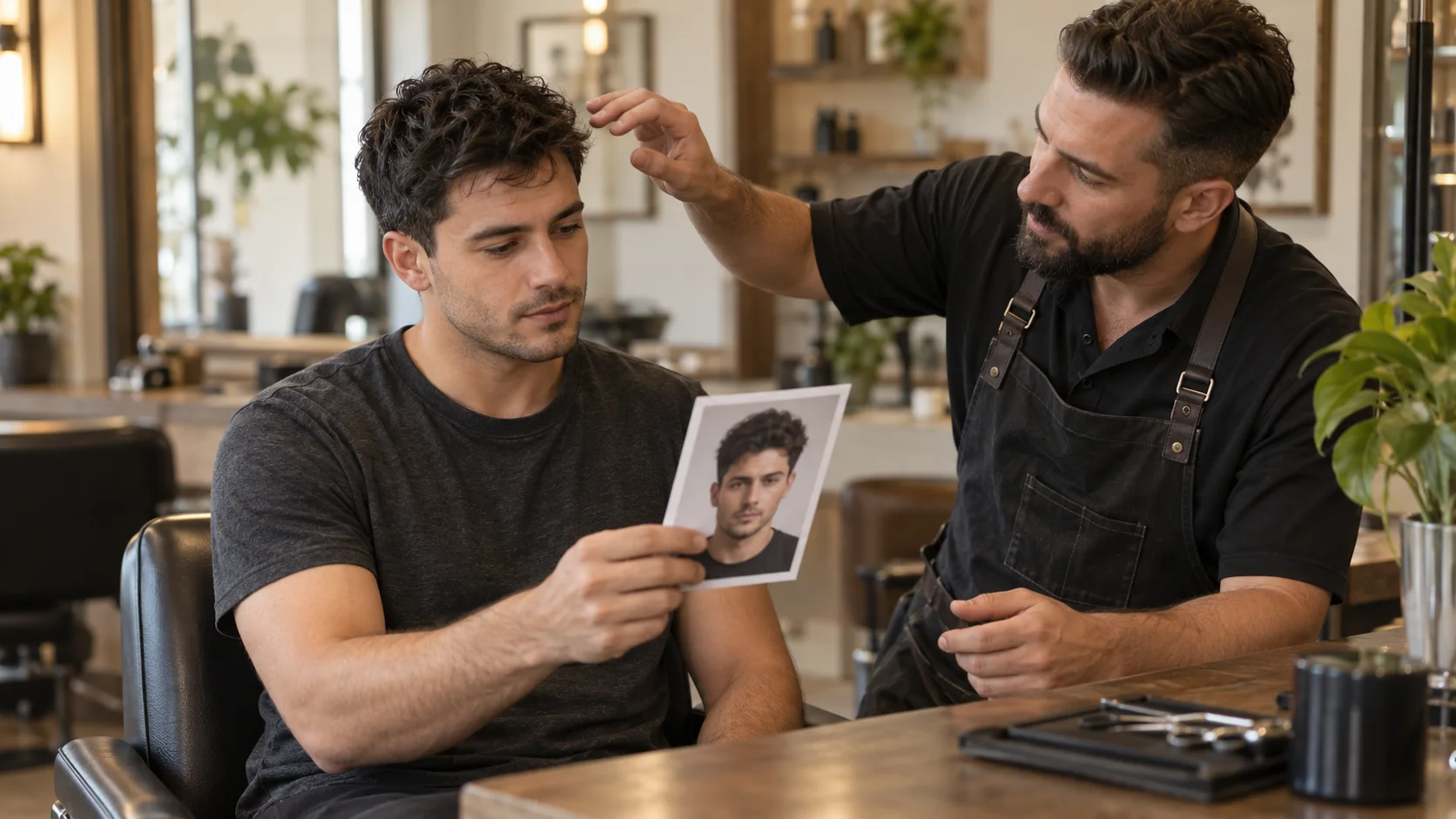
A Nano Banana 2 hairstyle preview can help you picture a different fringe or a shorter outline. The useful question comes after the image appears: could your own hair produce that shape? A polished portrait may quietly add density, move the hairline or change your face. Here is how to approach the preview, inspect the result and decide whether you need a general image editor or a haircut plan you can show a barber. This guide follows Google’s published documentation; it is not a side-by-side model test.
What Nano Banana 2 means for a hairstyle preview
Google identifies Nano Banana 2 as Gemini 3.1 Flash Image. Its model documentation supports image input and conversational image editing. That makes an uploaded portrait a possible starting point for a hairstyle idea. The model name identifies an image tool; it does not establish that a pictured cut suits your growth pattern or can be achieved with your present length.
Start by deciding what you want to learn. A shorter fringe is a different question from whether a middle part will stay in place without blow-drying. Choose one change for the first preview, keep the original beside it and write down the practical concern you want the image to answer. If you ask for a complete makeover, changes to lighting and facial appearance can make it harder to judge the haircut itself. A restrained comparison gives you a clearer reference for an appointment.
How to try a haircut in Gemini
In Gemini Apps, sign in, upload your photo and request a hair-only change. Google’s help page describes this editing route and its account, age and regional restrictions. Check that page for current access and model choices; app labels and limits can change. Save the original separately before starting.
Use a front photo with the entire top and both sides visible. A hat, strong shadow or wet hair can conceal the outline you are trying to compare. Decide on the fringe direction, side coverage and any treatment you will accept before making the request. For a first haircut preview, keep your current colour and natural texture. Review one result before trying another style from the same original. Keep a note of which haircut each file represents, so you can find the useful reference later. If you want a view of the back, provide a separate clear photo rather than treating an invented rear view as evidence.
Check the person first, then check the hair
Look at the eyes, nose, jaw, expression and skin before comparing the hairstyle. Check the clothing and background too. A result that changes these details may make the new cut seem more flattering for reasons unrelated to hair. If the person has changed, return to the original photo for a fresh attempt. Keeping edits on an already altered face makes it harder to recover a useful reference.
Then inspect the hairline, visible scalp and ends of the fringe. Has a sparse area become uniformly thick? Does the new front reach a position that your existing hair cannot reach? Has straight hair acquired a curl pattern you did not agree to create? Reject those changes when your aim is a haircut available now. A front photo cannot confirm hidden temple recession, the crown or the complete back shape. View the image at its original size as well as as a thumbnail: tiny previews can hide an unnatural edge near an ear or stray hair blended into skin.
Nano Banana 2 vs a dedicated hairstyle workflow
A general editor lets you direct and revise an image. You supply the haircut requirements and decide when the output is usable. You may also need to write a separate barber brief and maintenance routine. That suits someone who already has a clear reference and wants to explore visual variations. This is a comparison of the work involved, not a claim that one model produces a more accurate face.
AI Hairstyle Fit brings a photo preview, hairstyle recommendation, barber card and daily care notes into one haircut workflow. You can choose a photo for local preview and enter preferences before login; generation requires login and costs 10 credits. Its brief asks for a feasible change to scalp hair, with existing colour, texture and density retained by default. You still need to compare the result with your original. Gemini and AI Hairstyle Fit are separate services; this guide explains the Google editing route. Choose the route based on whether you mainly want to direct an image or leave with cutting and styling notes.
Scroll sideways for the full comparison
| Your next task | General image editor | AI Hairstyle Fit |
|---|---|---|
| Choose a direction | Describe your preferred change | Provide preferences for a proposed haircut |
| Review the portrait | Compare with your original yourself | Compare the result with your original yourself |
| Prepare for the barber | Write or request separate cutting notes | Open the result’s barber card |
| Plan daily styling | Work out or request the routine | Read the accompanying daily care notes |
Turn a preview into a barber conversation
Take the original and one selected preview to the barber. Point out the detail you want: where the fringe lands, how much ear coverage remains or how softly the sides connect to the top. Ask which parts can come from cutting and which require drying, product or more growth. A picture cannot answer those questions by itself. If the preview relies on a fuller hairline or extra length, keep it as a future reference and agree on a smaller change for this visit.
Have the barber demonstrate the finish using the time and tools you will actually use at home. A lifted front may look different after air-drying. Ask what happens without product, and which outline changes mean it is time for a trim. With AI Hairstyle Fit, save the useful result and barber card within the site’s 24-hour photo retention period. Whatever tool you choose, keep the original photo with the final reference. The appointment should resolve uncertainty about your hair rather than copy details an editor guessed.
Use a Nano Banana 2 hairstyle preview to choose a detail worth discussing. Compare it with your original, reject invented density or length, and take the remaining questions to a barber. If you also want a proposed haircut, cutting notes and daily care steps, try the photo workflow below.
Quick answers
Can Nano Banana 2 change my hairstyle without changing my face?
You can request a hair-only edit, but an instruction is not a guarantee. Compare facial features, skin, expression and the surrounding scene against the original. Restart from the original if those details change.
Is a Nano Banana 2 hairstyle preview free?
Access and image limits depend on the Google product, account and plan you use. Check the current official help page before starting. This guide does not promise unlimited free edits or access without signing in.
Does a realistic preview mean the haircut is possible?
No. An editor can depict length, density or a growth direction you do not have. Ask a barber to check your actual hair and separate cutting changes from styling or growing it out.